Process Analysis Workspace
TianGong LCA now includes a dedicated Process Analysis Workspace for advanced LCIA-oriented analysis across multiple processes.
It is different from ordinary LCIA Calculation & Results:
- The
LCIApage is for reading results from one process or one model - This workspace is for comparison, grouping, and contribution-path exploration across processes
How to enter
The current entry point is:
- Open My Data → Processes
- Click LCA Analysis in the process-list toolbar
This is an advanced workspace entry and may not appear directly in the left navigation menu.
Shared inputs
At the top of the page, all tabs share the same analysis inputs:
- Data scope
- Process search
Data scope
The current options are:
- Current user data
- Open data
- All data
Choose them according to your goal:
- Use Current user data when checking your own drafts
- Use Open data when comparing published datasets. Process profiles and LCIA detail rows in
Open Data prefer published LCIA result sets. Those result sets are generated and published from
the Data Processing workspace by accounts with
data_product_manageraccess, and include only inputs that satisfy the published-state eligibility rules. If no published result set is available, the page shows an empty or unavailable state instead of temporarily recalculating and publishing results. - Use All data when you need the broadest available candidate set
Process search
Process search narrows the list of available candidates for all tabs below.
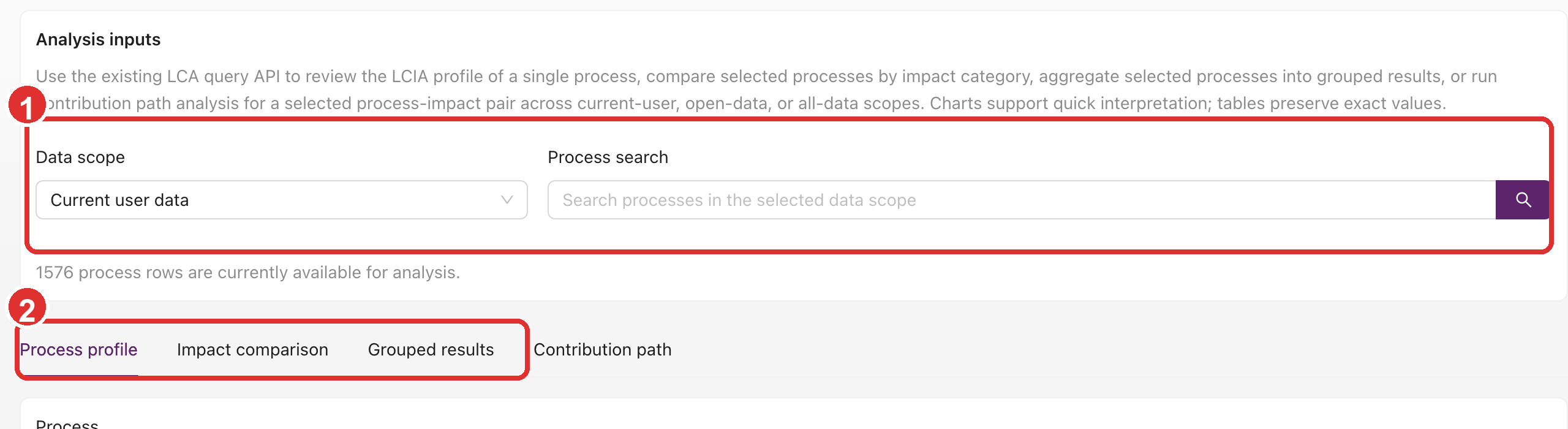
In the screenshot, 1 marks the shared input area used by every analysis tab, and 2 marks the
four analysis tabs. Set the scope and candidate processes first, then switch into the specific
analysis mode you need.
Tab 1: Process profile
Process profile is for inspecting the LCIA profile of one process.
Profile steps
- Select one process
- Click Load profile
Profile result content
The result area typically includes:
- Query metadata such as
snapshot_id,result_id, source, and computed time - A summary of the selected process
- A Non-zero categories count
- A Normalized profile chart
- A detailed impact-category table
Use this when you need a quick view of the relative impact pattern of a single process.
Tab 2: Impact compare
Impact compare compares multiple processes under one impact category.
Compare steps
- Select one Impact category
- Choose multiple processes in the selection table
- Click Run analysis
Use Clear selection if you want to reset the comparison set.
Compare result content
The tab typically returns:
- Number of compared processes
- Top contributor
- Absolute total
- A comparison chart
- A detailed comparison table
Use it when you want to know which candidate process contributes more under the same impact category.
Tab 3: Grouped results
Grouped results aggregates multiple processes by a selected dimension before comparison.
Available grouping dimensions
The current UI supports:
- Location
- Classification
- Type of data set
- Team
Grouped-analysis steps
- Select one Impact category
- Select one Group by rule
- Choose multiple processes
- Click Run grouped analysis
Grouped-analysis result content
The result area usually includes:
- Number of groups
- Number of selected processes
- Top group
- Absolute total
- A Grouped ranking chart
- A grouped detail table
Use this tab when the real question is “which category or cluster contributes the most overall?”
Tab 4: Contribution path
Contribution path starts from one root process and explores how impact travels through the process network.
Inputs
Besides the impact category and root process, the page lets you adjust:
- Amount
- Max depth
- Top-k children
- Cutoff share
- Max nodes
Contribution-path steps
- Select one Impact category
- Choose one root process
- Adjust the numeric parameters if needed
- Click Run contribution path
Contribution-path result content
The result area typically includes:
- Total impact
- Coverage
- Expanded nodes
- Truncated nodes
- Echoed root-process and parameter settings
- A direct-contributor chart
- A Contribution path Sankey
- Additional branch, node, or link tables below
Use this tab when you need to understand which upstream paths dominate the impact.
Contribution paths expand the provider-linking results in the current solver
snapshot. For product input exchanges, exchange.location can set the supply
region. If no explicit location is available, the consumer process location is
used as the default supply-region anchor. When multiple providers are available,
the system first narrows candidates to same-model_id reference-output
providers when the consumer process has such providers for the same product
flow. If no same-model provider exists, it falls back to the broader regional
supply mix. The system then chooses the geography tier and weights providers
inside that tier by annual supply or production volume. Missing or invalid
annual volume uses a default positive weight. Only a quantitative reference
output is treated as an eligible provider for that product flow; same-flow_id
non-reference outputs are recorded only as diagnostic candidates. This split
changes the upstream provider mix; it does not change the total demand of the
input exchange.
Relation to Task Center
Some analyses can trigger background solving work. If processing takes longer, keep an eye on Task Center in the top bar:
- Task Center combines LCA Calculation, TIDAS import/export, and review-submit background jobs in one panel.
- You can switch by task type, and the panel uses progress bars, status tags, and stage labels to show current progress. Review-submit tasks can show queued, gate running, waiting for gate, submitting review, submitted, blocked, stale, cancelled, or error phases.
- Use View or Details to inspect result IDs, snapshot IDs, task IDs, failure reasons, and diagnostics. When review submission fails, open the gate reason,
review_submit_job_id, and worker-job diagnostics before deciding whether to retry. - If the same process version already has a review-submit gate running, the page asks you to try again later instead of creating a duplicate background task.
- Finished tasks can be cleared; failed or cancelled tasks should be opened first so you can decide whether to rerun the related analysis or review submission.
If you are working with TIDAS packages, also see the TIDAS ZIP Import, Export, and Task Center task-center guidance.
When not to use this workspace
You usually do not need this workspace when:
- You only need LCIA results for one process or one model
- You only need standard JSON export
- You only need review or permission management
Those cases fit better with: