Notification Center
The notification center sits in the top-right toolbar after sign-in. It collects reminders for team collaboration, data review, and issue feedback. To confirm the entry point first, see Key Functions Overview.
How to open it
Select the notification icon in the top toolbar. The notification center is a global entry point and does not depend on the current page.
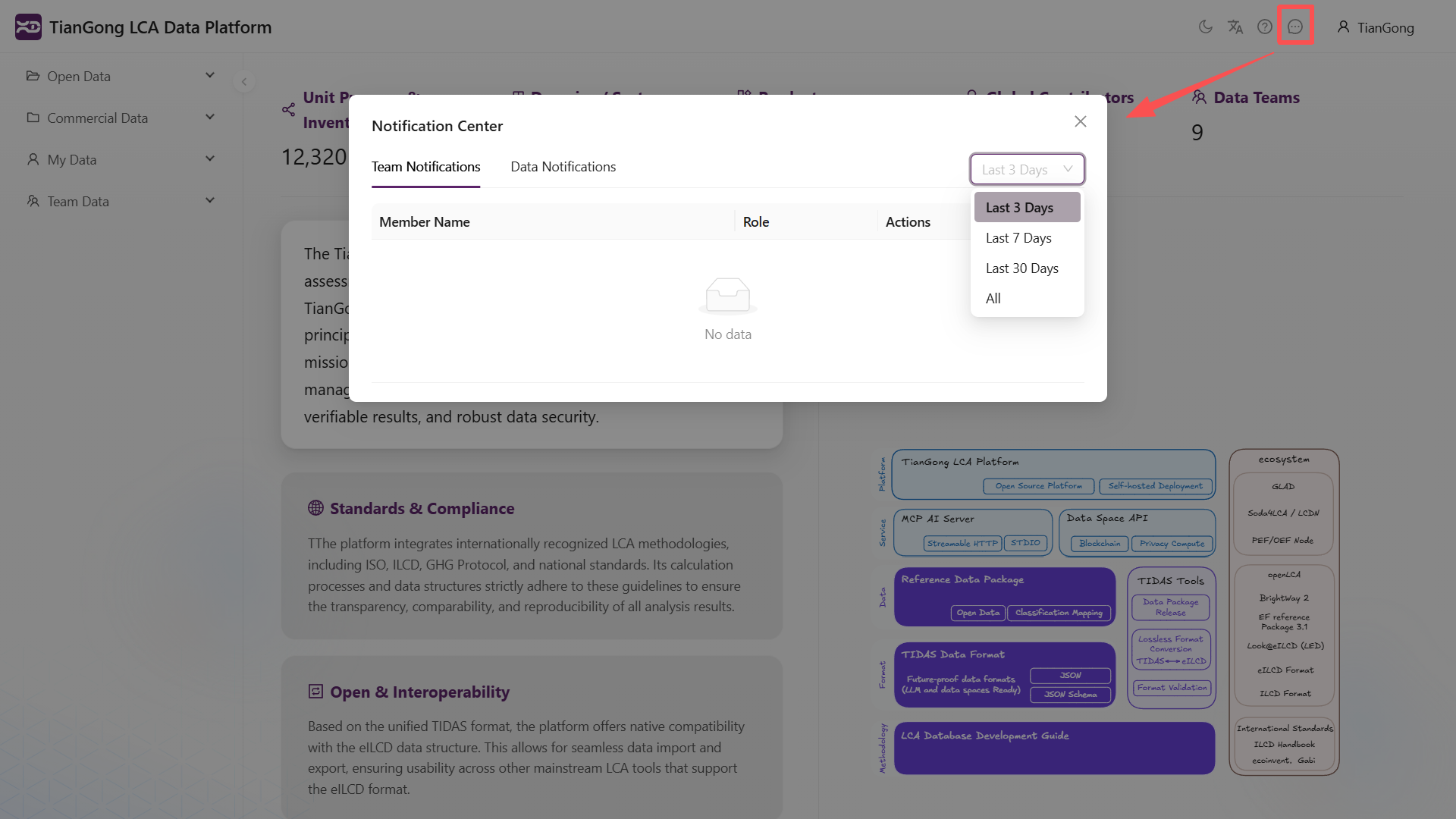
The notification center currently contains three tabs:
- Team Notifications: collaboration reminders such as team invitations.
- Data Notifications: review status changes and rejected-data reminders for data submitted by the current account.
- Issue Notifications: validation issues reported by other users and related follow-up reminders.
Time filters and read state
The list can be filtered by time range:
- Last 3 days
- Last 7 days
- Last 30 days
- All
Opening a tab updates the viewed timestamp for that notification type. Before handling reviews, team collaboration, or issue fixes, check the notification center so follow-up work is not missed.
What data notifications can do
Data notifications are usually tied to the data review workflow. The list shows the data name, team, status, time, and available actions.
Common actions include:
- Select View to open the related data.
- For rejected data, open the review-comment modal first and read the reason.
- In the review-comment modal, select Fix Data to open the editable page.
- After fixing the data, return to the review flow and resubmit or wait for the next review step as required.
If a data notification appears inconsistent with the status in Data Review, trust the latest detail page and Review Management workspace.
Related features
- Team invitation notifications usually relate to Team Function.
- Data review feedback usually relates to Data Review and Create My Data.
- For account email changes, check both the notification center and your email inbox.