Account Management & API Key
Open the avatar menu in the top-right corner and select Account Profile to reach the account page.
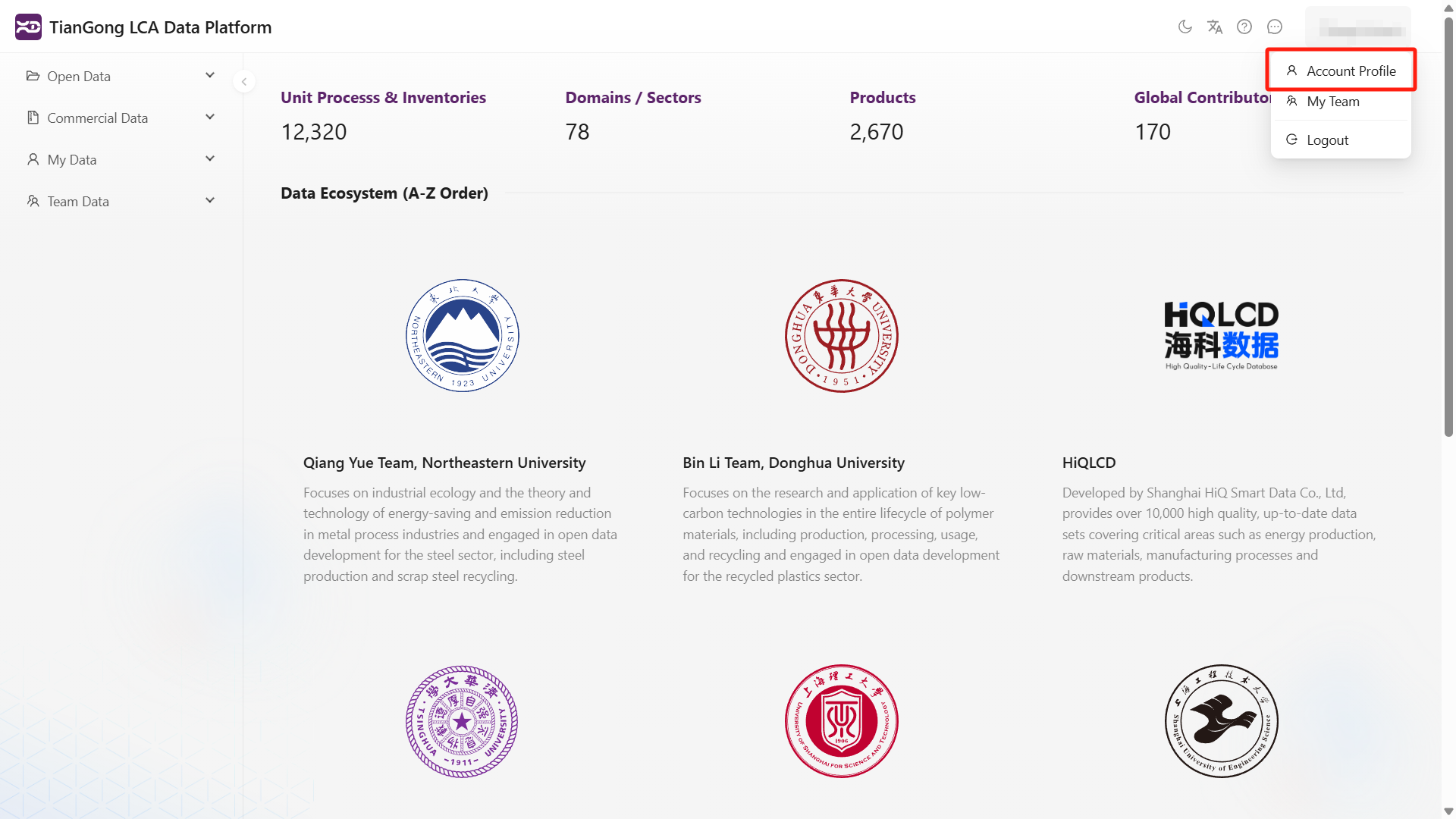
The page currently contains four tabs:
- Basic Information
- Change Password
- Change Email
- Generate API Key
If you need to connect to remote MCP services or authenticated APIs, generate the key here first and then continue with TianGong LCA MCP - Remote or TIDAS Package Import API.
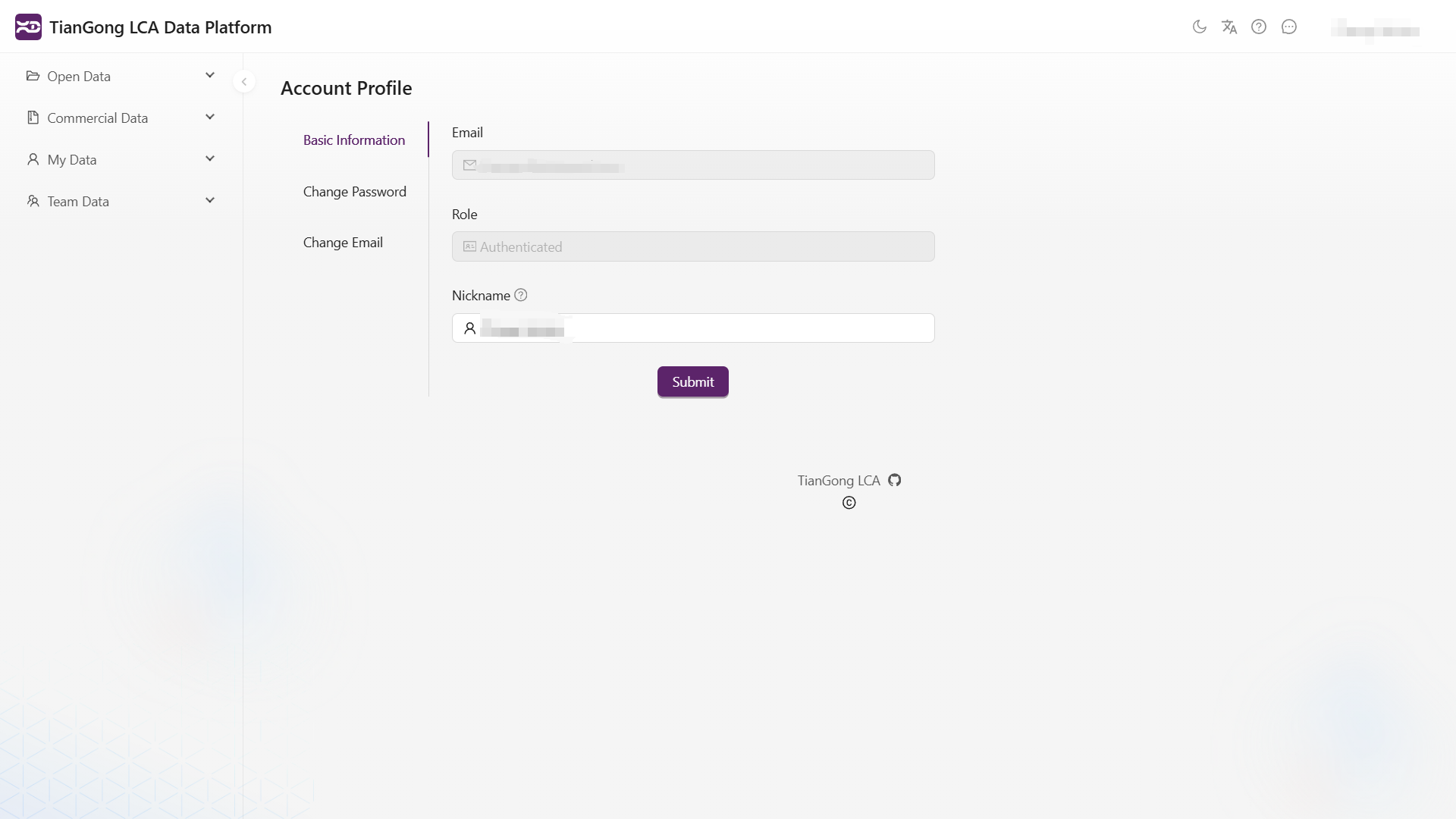
Basic Information
The Basic Information tab shows your current email, role, and nickname.
- Email and role are read-only identity fields.
- Nickname is editable.
- After saving, the name shown in the header updates immediately.
Change Password
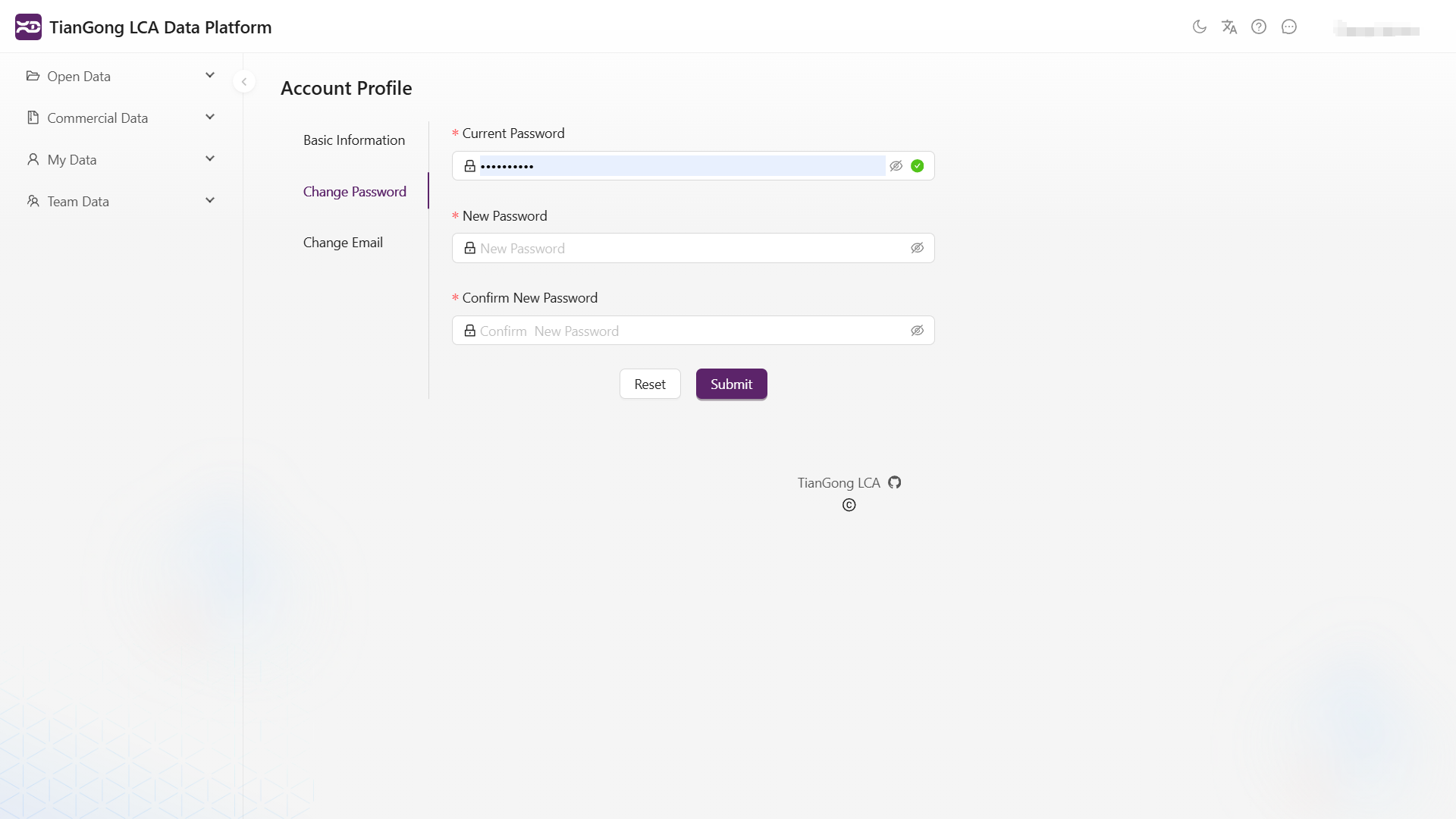
To change your password, fill in:
- Current password
- New password
- Confirm new password
Keep in mind:
- The new password must differ from the current one.
- It must satisfy the platform's password complexity rules.
- If you use scripts or external tools, update the stored password there as well.
Change Email
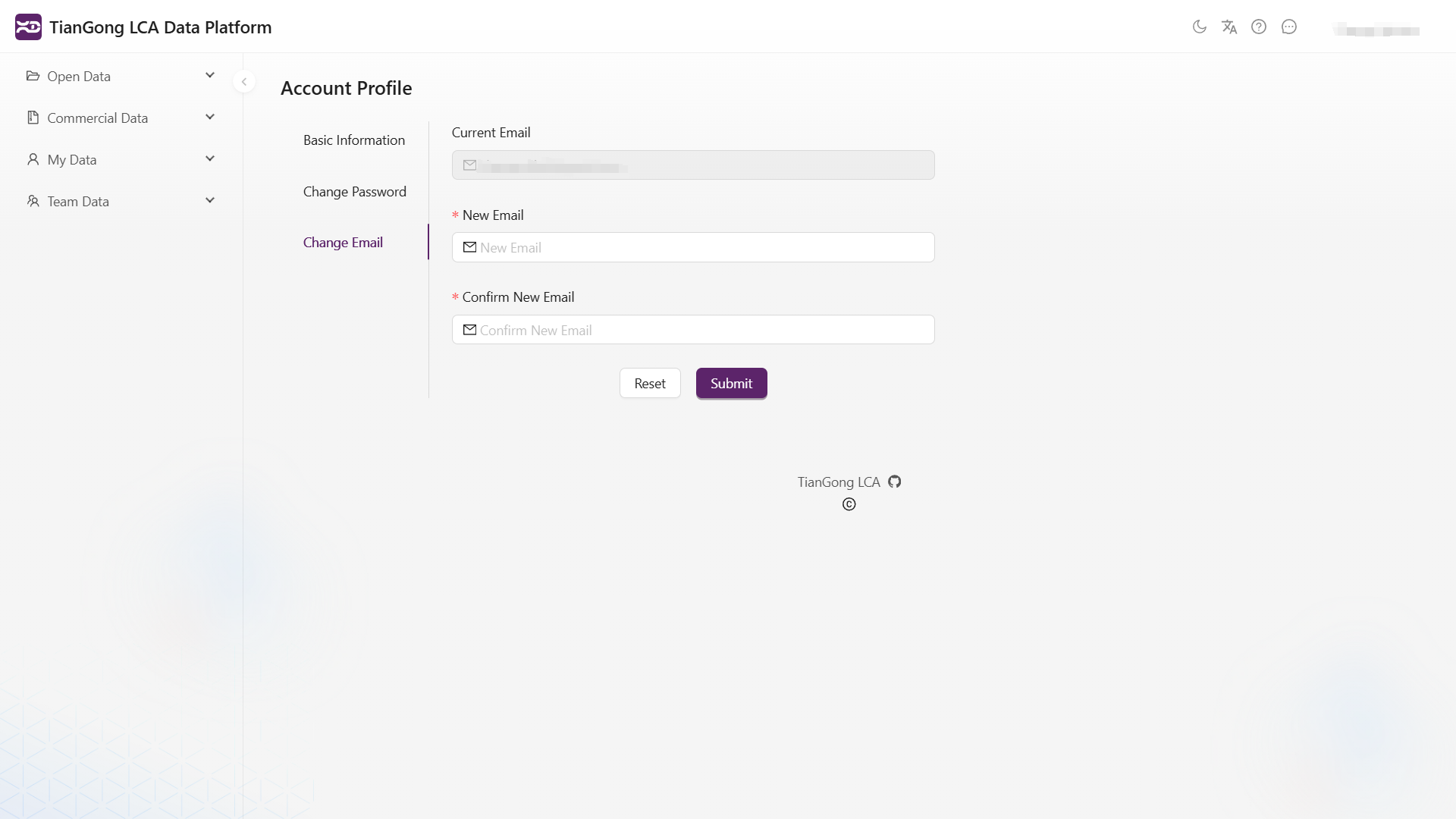
The Change Email tab shows your current email and asks for:
- New email
- Confirm new email
After submission, the platform sends a verification email to the new address. Check both your inbox and the notification center until the change is confirmed.
Generate API Key
Generate API Key is now a first-class account feature, not just an integration note.
Typical use cases
- Connecting to TianGong LCA remote MCP
- Running authenticated automation scripts
- Configuring external services that call the platform
Steps
- Open the Generate API Key tab.
- Enter your current account password to verify your identity.
- Click Generate API Key.
- Copy the generated key immediately.
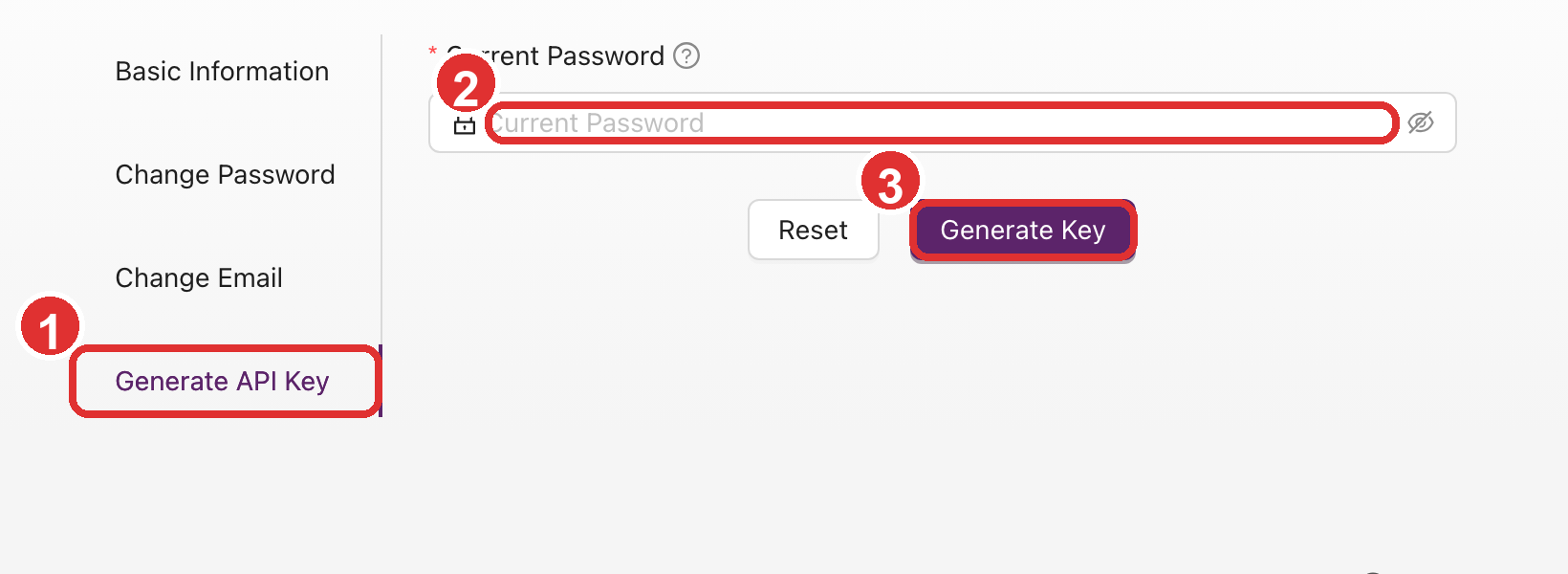
In the screenshot, 1 marks the Generate API Key tab, 2 marks the current-password
verification field, and 3 marks the key-generation button. The actual generated key is omitted
here for security reasons.
Important security note
The full API key is displayed only once. Store it immediately in a secure location such as a password manager or managed secrets system.
- If password verification fails, the page asks you to re-check the current password.
- If you leave the page without saving the key, you will need to generate a new one.
- Never place the key in public repositories, screenshots, tickets, or shared chat history.
FAQ
Why is API key generation documented on the account page now?
Because the account page is the actual product entry point. MCP and OpenAPI pages explain how to use the key after it has been created.
What if I do not see the Generate API Key tab?
Refresh the page and confirm you are using the expected account. If the tab is still missing, check with the environment maintainer to confirm whether this capability is enabled in the current deployment.