System Management Workspace
The System Management workspace is intended for platform-level roles. It is used to maintain homepage team display settings and system-member permissions. Regular end users usually do not need this page.
Intended audience
This workspace is primarily for the following system roles:
- owner
- admin
- member
These are platform-level system roles, not the same thing as team roles or review roles.
How to open it
If your account has a system role, the avatar menu in the top-right corner shows a System Management entry.
This is a hidden workspace and does not stay visible in the left navigation for everyone.
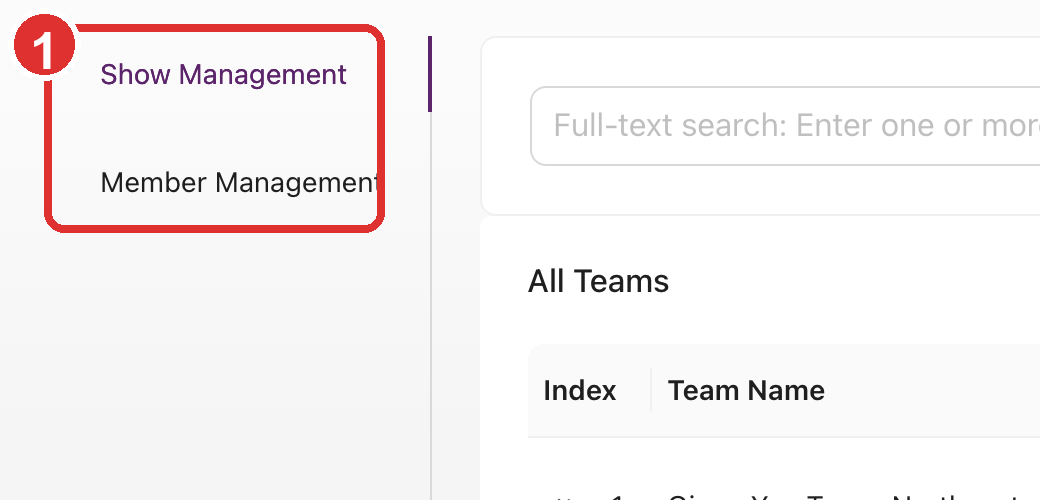
The marked area 1 shows the workspace's main tab zone, which currently contains Show
Management and Member Management.
Tab 1: Show Management
The first tab currently manages which teams appear on the homepage, which is why the UI label is currently Show Management.
It is mainly used to:
- Review teams that are included in the homepage display set
- Change display order
- Edit display information
- Remove a team from homepage display
- Select which teams should be shown
If your responsibility is “which teams should appear on the homepage, and in what order,” this is the relevant entry point.
Tab 2: Member Management
Member Management is where system-level account roles are maintained.
The table typically lists:
- Member name
- Current role
Common actions
Available actions depend on the current system role:
- owner can promote
membertoadmin - owner can demote
adminback tomember - owner / admin can remove non-
ownermembers - owner / admin can add system members
- member is generally read-only here
Usage notes
Confirm which permission domain you are changing
This page manages platform-level system roles. Do not confuse them with:
- Team owner / admin / member roles
- Review-admin / review-member roles
Check the impact before changing high-level access
Before adding, removing, or changing a system role, confirm:
- Whether the user still owns platform-level maintenance work
- Whether the change affects visible entry points for others
- Whether related users should be notified
Related pages
- For ordinary team collaboration, see Team Functions
- For review-specific roles, see Data Review
- For a consolidated access summary, see Permissions & Data Spaces