TIDAS ZIP Import, Export, and Task Center
The product now includes a user-facing TIDAS ZIP package workflow. These entries live in the global top bar rather than inside a single data page.
If you only need the API flow, use TIDAS Package Import API. This page focuses on the web UI workflow.
Use the released Rust
tidas 0.1.3 CLI when you need to
prepare and validate a TIDAS package from EcoSpold, openLCA, SimaPro, or
ILCD/eILCD before upload. It is an independent local package tool, not an alias
for the web UI or the tiangong-lca platform client.
Where to find the entries
The relevant top-bar controls are:
- Import TIDAS ZIP Package
- Export TIDAS ZIP Package
- Task Center
If you need the broader control map first, start with Key Functions Overview.
Import TIDAS ZIP Package
Typical use cases
- Import a prepared TIDAS package into the current environment
- Migrate processes, models, flows, and dependencies in bulk
- Exchange data with other TIDAS-compatible tooling
Rules
- The UI accepts one
.zipfile - Non-ZIP files are rejected immediately
- The system validates structure, references, and conflicts before import
- Validation covers TIDAS JSON; when the package contains eILCD/ILCD XML, the XML is checked against the packaged schemas
- Flow records with CAS numbers also validate the CAS check digit, so a structurally valid CAS number with the wrong check digit is still reported as a validation issue
Import steps
- Click Import TIDAS ZIP Package in the top bar.
- Drag or select a single
.zipfile. - Click Import.
- Review the result returned by the modal.
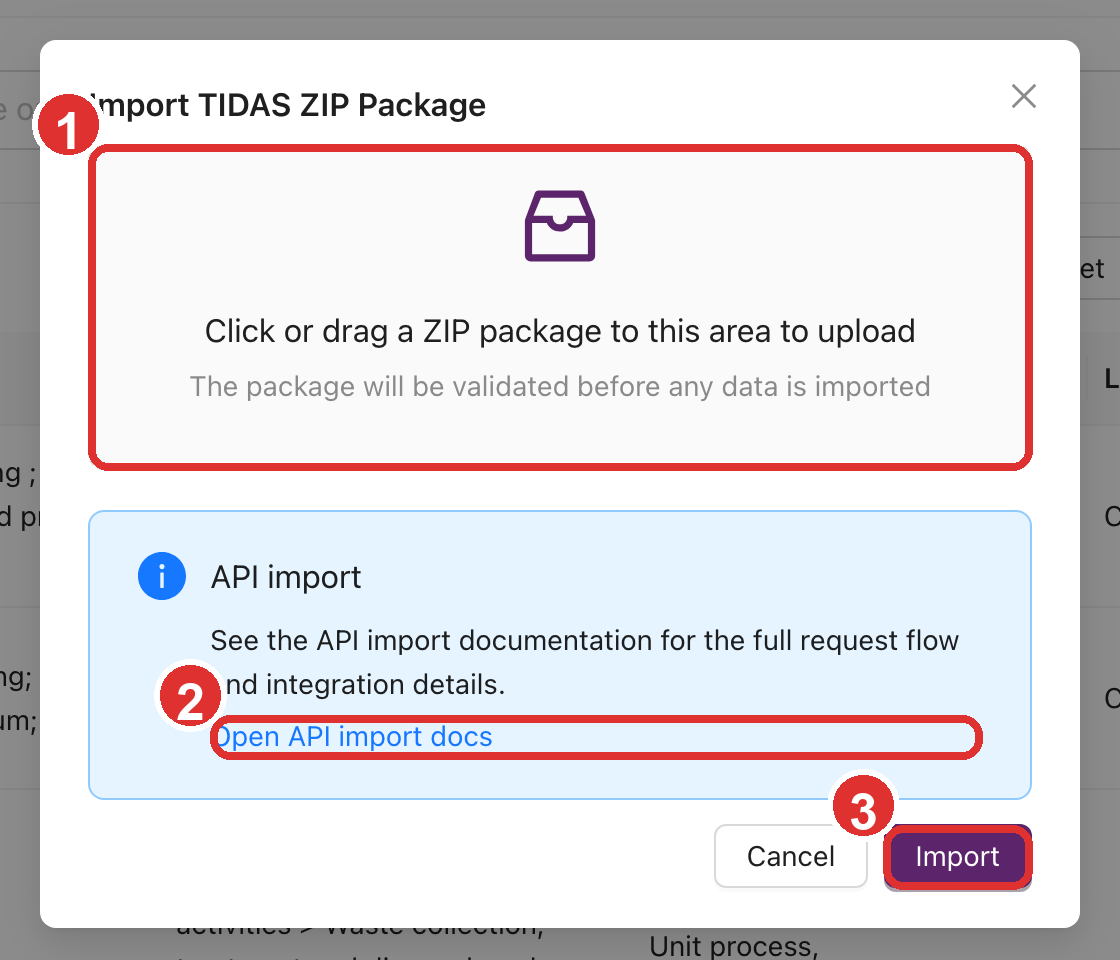
In the screenshot, 1 marks the ZIP upload zone, 2 marks the API-import documentation link, and
3 marks the button that submits the import.
Possible outcomes
Successful import
The platform confirms that the package has been imported successfully.
Success with skipped open data
If the ZIP contains open datasets that should not be duplicated, the system reports that some open datasets were skipped.
Validation blocked
If required fields, references, or package structure fail validation, the import is blocked and the modal explains the issues. Common causes include schema mismatches, missing references, eILCD/ILCD XML that does not match the packaged schemas, or an invalid CAS number check digit.
Conflict rejection
If the package conflicts with objects already present in the environment, the import is rejected until those conflicts are resolved.
How to troubleshoot
The import modal can provide a downloadable JSON report. Treat that file as the primary troubleshooting artifact. It helps answer:
- Which objects failed validation
- Which references could not be resolved
- Whether any CAS numbers have invalid check digits
- Which objects conflict with existing records
- Which open datasets were skipped
Prepare a ZIP from an external format with tidas
tidas import supports EcoSpold1, EcoSpold2, SimaPro CSV, openLCA JSON-LD,
openLCA process XLSX, and ILCD/eILCD inputs. This sequence creates a TIDAS
package directory and validates it natively:
tidas import ./source-package.zip \
  --output ./prepared \
  --target tidas \
  --write-mapping \
  --format json

tidas validate ./prepared/tidas \
  --input-format tidas-json \
  --issues ./prepared/validation-issues.jsonl \
  --format json
The import command detects supported source formats. Use --from-format when
the input is ambiguous. .zolca files are rejected; export a supported
exchange format from openLCA first.
Place the TIDAS package contents at the ZIP root for web upload. Linux/macOS:
(cd ./prepared/tidas && zip -r ../../prepared-tidas.zip .)
Windows PowerShell:
Compress-Archive -Path .\prepared\tidas\* -DestinationPath .\prepared-tidas.zip
Then select prepared-tidas.zip in the web UI. Before archiving, confirm that
tidas validate returns exit code 0. Exit code 2 means the command
completed with data issues and must not be ignored.
Review the reports and audit artifacts before importing:
- EcoSpold1 / EcoSpold2 conversion preserves source processes, flows, exchange identifiers, classifications, locations, CAS numbers, and numeric text where possible. Source details that cannot safely fit formal fields are kept in the TIDAS import trace.
- openLCA JSON-LD conversion turns resolvable
defaultProviderrelationships into candidate lifecycle models and keeps unmapped source metadata as trace for manual review. - For openLCA / USLCI land-use flows named
Occupation, ...orTransformation, from|to ...,tidas importwrites elementary flows underLand useinstead of product-flow placeholder categories; the original source type and category remain in trace for review. - openLCA JSON-LD exchange amounts are converted to each flow's reference flow-property unit. The original amount and unit remain in the source metadata. If
import-report.jsonorissues.jsonlreports unresolved exchange normalization, review the source unit groups, flow properties, and reference units before importing. - The importer writes
process-bundles/<process_uuid>/folders by default so downstream tools can handle dependencies one process at a time. Add--no-process-bundleswhen those bundles are not needed. - The expert mapping CSV is not generated by default. Add
--write-mappingwhen you need field-level review;mapping.csv.gzlists formal fields, trace-only fields, placeholders, and generated fields. import-report.jsonis the operation report andissues.jsonlis the complete issue stream. Inspect them with the optionalmapping.csv.gzinstead of relying only on the terminal summary.- If the report flags schema, reference, CAS, or classification issues, fix the source data or conversion configuration and regenerate the ZIP before retrying.
For repeatable automation or deeper control over error handling, use TIDAS Package Import API.
Export TIDAS ZIP Package
Core behaviour
Export is asynchronous. The system first creates an export job, then you return to Task Center to download the final ZIP file.
Available scopes
The visible export scope depends on your role:
| Role scope | Available options |
|---|---|
| Standard user | Current user data |
| System admin / owner | Current user data, Open data, Current user data + open data |
Export steps
- Click Export TIDAS ZIP Package in the top bar.
- Choose the export scope.
- Click Export.
- Open Task Center and wait for the job to finish.
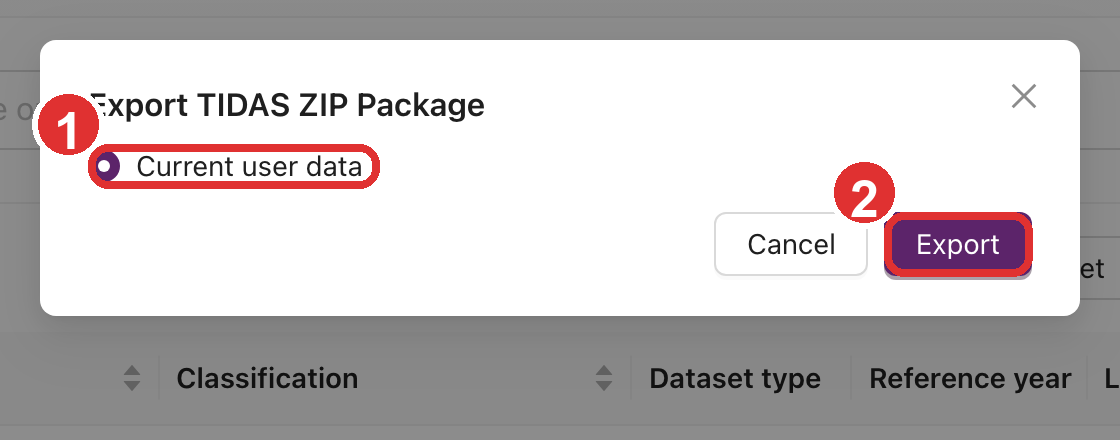
In the screenshot, 1 marks the export-scope selector and 2 marks the button that submits the
export task. The exact scope options depend on your role.
Do not wait inside the modal
After submission, the modal only confirms that the task was created. The actual downloadable file is handled by the task center rather than the export dialog itself.
Task Center
What it shows
Task Center is the shared background-job panel in the top bar. It now combines several task types:
- LCA tasks
- TIDAS Export tasks
- TIDAS Import tasks
- Review Submit tasks
The import modal still returns the current operation result. When import work enters the background task flow, Task Center shows the validation, import, and report stages.
Common actions
Inside Task Center you can usually:
- Clear finished
- Download: available only for completed TIDAS export jobs
- Details: inspect IDs, timestamps, filenames, and other metadata
- Diagnostics: inspect failure reasons, backend task IDs, or request context
- View: open task details and confirm progress, stages, and available actions
A common export failure
One common failure is an export package that exceeds the environment's large-file upload limit.
Try the following first:
- Export a smaller scope
- Split the export into multiple runs
- Ask a system administrator whether large-file uploads can be enabled
When to use the UI vs the API
Use the web UI when:
- You are doing one-off manual import or export work
- You want to inspect validation results interactively
- The workflow is being handled by a regular platform user
Use the API when:
- You need automation
- You need repeated imports in scripts or pipelines
- You want external systems to process validation and error reports directly