
Key Functions Overview
This guide groups the most important interface controls by scenario. If you are looking for the ZIP package workflow specifically, continue with TIDAS ZIP Import, Export, and Task Center.
National carbon dashboard public view
If you receive or need to present a /dashboard/national-carbon link, you can open the national
carbon dashboard directly. It is not shown in the normal menu, but the current route is visible only
to system administrator accounts; accounts without access see the 403 access-restricted state.
The dashboard presents national carbon data platform progress across five views: Overview, Status, Outcomes, Computable, and Process Flow Topology. The topology view shows process and flow connections, lets you switch between sphere 3D, expanded 2D, and geographic map layouts, and uses node search, quick selection, and cache job status to show whether the graph is ready. While graph cache data is loading, the page stays in a waiting state and only shows messages such as “No data available” when the cache is unavailable. Use the dashboard for presentation, public dashboard, or offline demo scenarios, not for editing data.
Global top-bar controls
After sign-in, the top-right area of the main layout shows a set of global controls. These are workspace-level actions rather than page-specific buttons.
Typical order
From left to right, the current header usually includes:
- Import TIDAS ZIP Package
- Export TIDAS ZIP Package
- Data Processing (visible only to
data_product_managerusers) - Task Center
- Notifications
- Light / Dark mode
- Language switcher
- Documentation link
What each control does
| Control | Purpose | Notes |
|---|---|---|
| Import TIDAS ZIP Package | Import a ZIP archive that follows the TIDAS package structure | Accepts .zip only |
| Export TIDAS ZIP Package | Export accessible data as a ZIP package | Runs asynchronously and finishes in Task Center |
| Data Processing | Generate, preview, and publish LCIA result sets and Model / Result Release ZIPs | Visible only to accounts with data_product_manager access |
| Task Center | Monitor background work | Combines LCA analysis, TIDAS import/export, and review-submit background jobs |
| Notifications | Review collaboration and review updates | Includes Team, Data, and Issue tabs; see Notification Center |
| Light / Dark mode | Switch theme | Useful for different work environments |
| Language switcher | Switch the Chinese / English / German UI locale | Also affects which docs locale opens |
| Documentation link | Open the TianGong docs site | Chinese UI opens Chinese docs; English and German UI open English docs |
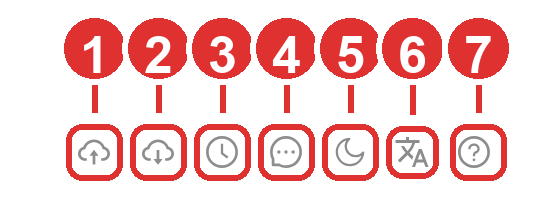
The numbered markers follow the current left-to-right order: 1 Import TIDAS ZIP Package,
2 Export TIDAS ZIP Package, 3 Task Center, 4 Notifications, 5 Light / Dark mode,
6 Language switcher, 7 Documentation link.
Accounts with data_product_manager access also see Data Processing before Task Center; accounts
without that role do not see the control.
Notification centre
The notification centre currently contains three tabs:
- Team Notifications
- Data Notifications
- Issue Notifications
You can also filter the feed by the last 3 days, 7 days, 30 days, or all time. Opening a tab updates its viewed timestamp, so it is worth checking regularly. See Notification Center for the detailed workflow.
Avatar menu entries
Selecting the avatar or account name opens a role-aware menu. Common entries include:
- Account Profile
- My Team
- Review Management: visible only to review roles
- System Management: visible only to system roles
- Logout
Related guides:
Data table controls
Most list pages also expose a standard group of table controls:
- Refresh: Load the latest state
- Display density: Switch between Comfortable / Medium / Compact
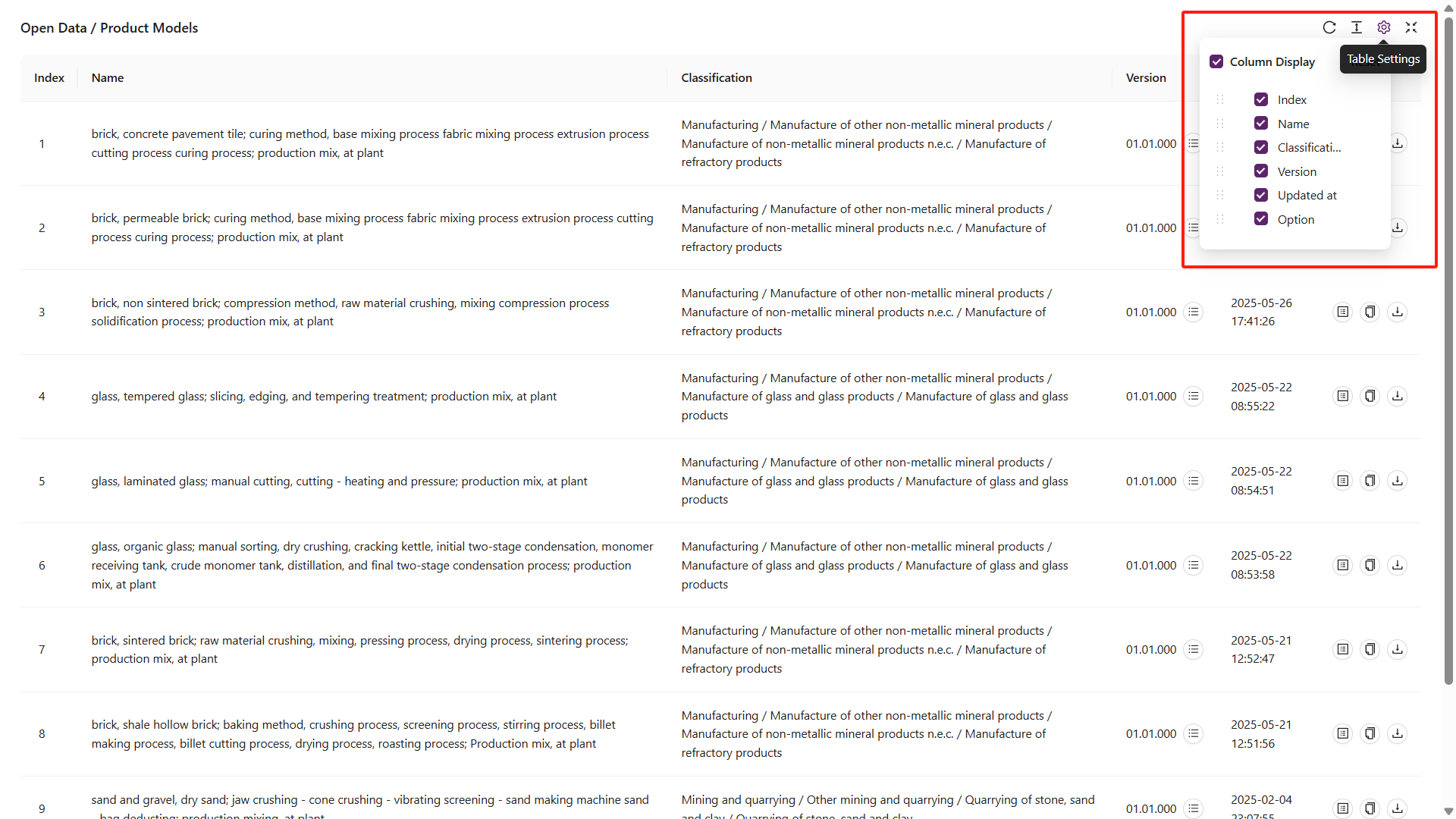
- Column settings: Show, hide, or reset columns
- Fullscreen: Hide surrounding UI and focus on the table
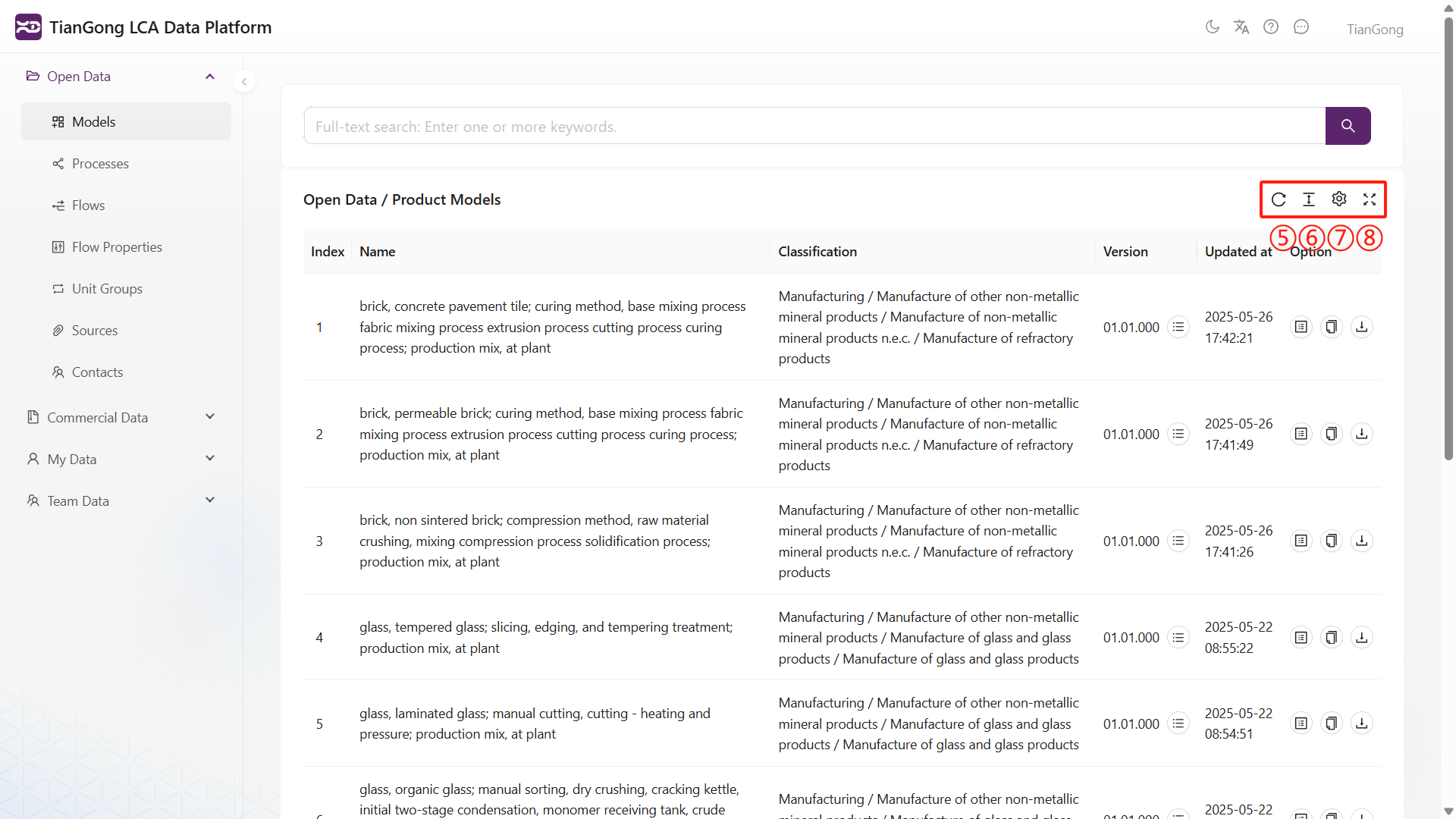
You can combine fullscreen with column settings to tailor the view to a specific task:
Data operations
Row-level actions
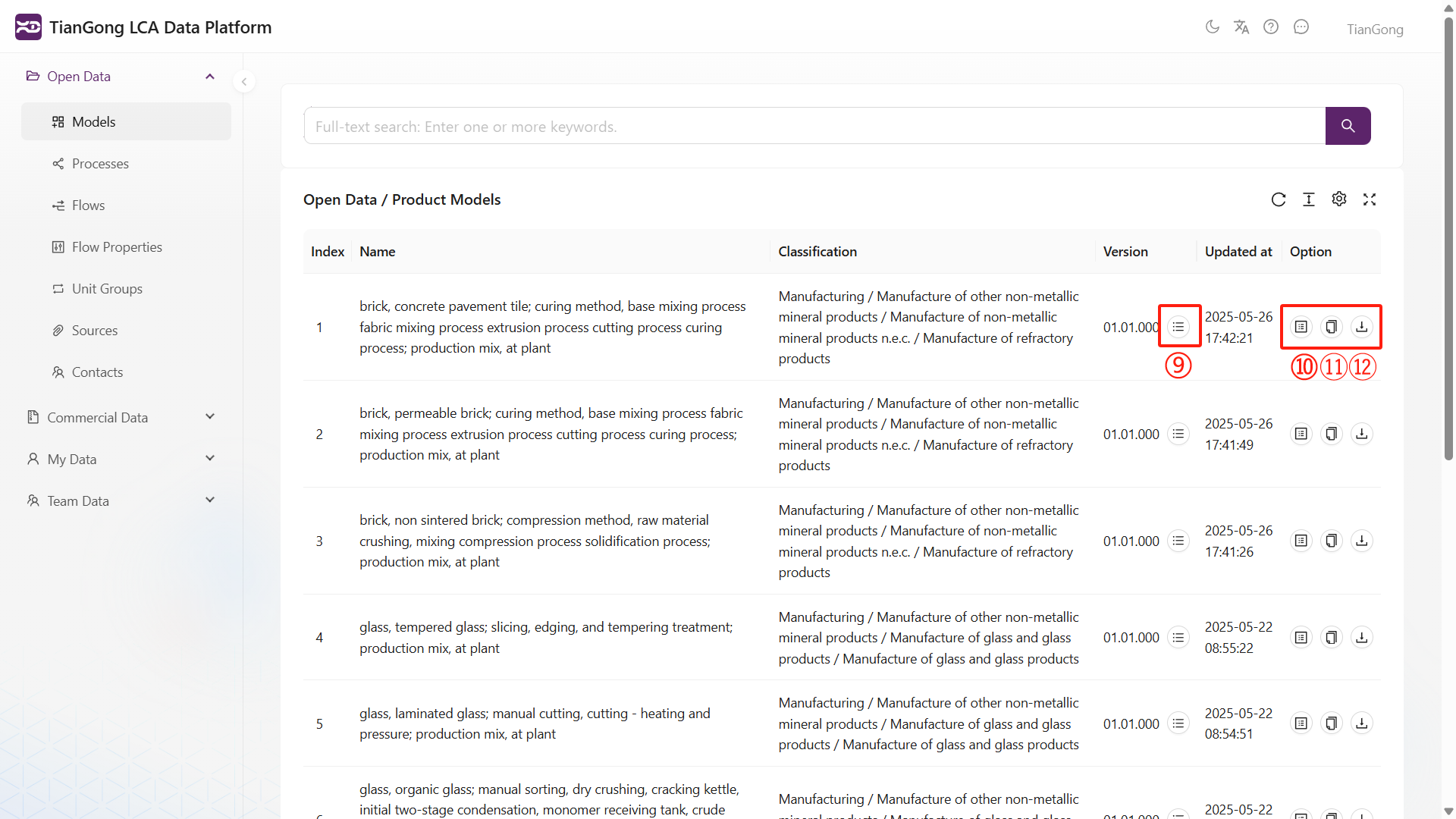
Common actions in dataset tables include:
- View versions: Inspect revision history and publication changes
- View details: Open the full record in read-only mode
- Copy: Duplicate the dataset into My Data
- Export JSON: Download a TIDAS-compatible
.jsonfile
Confirm that the receiving system understands the TIDAS schema before importing exported JSON.
“My Data” actions
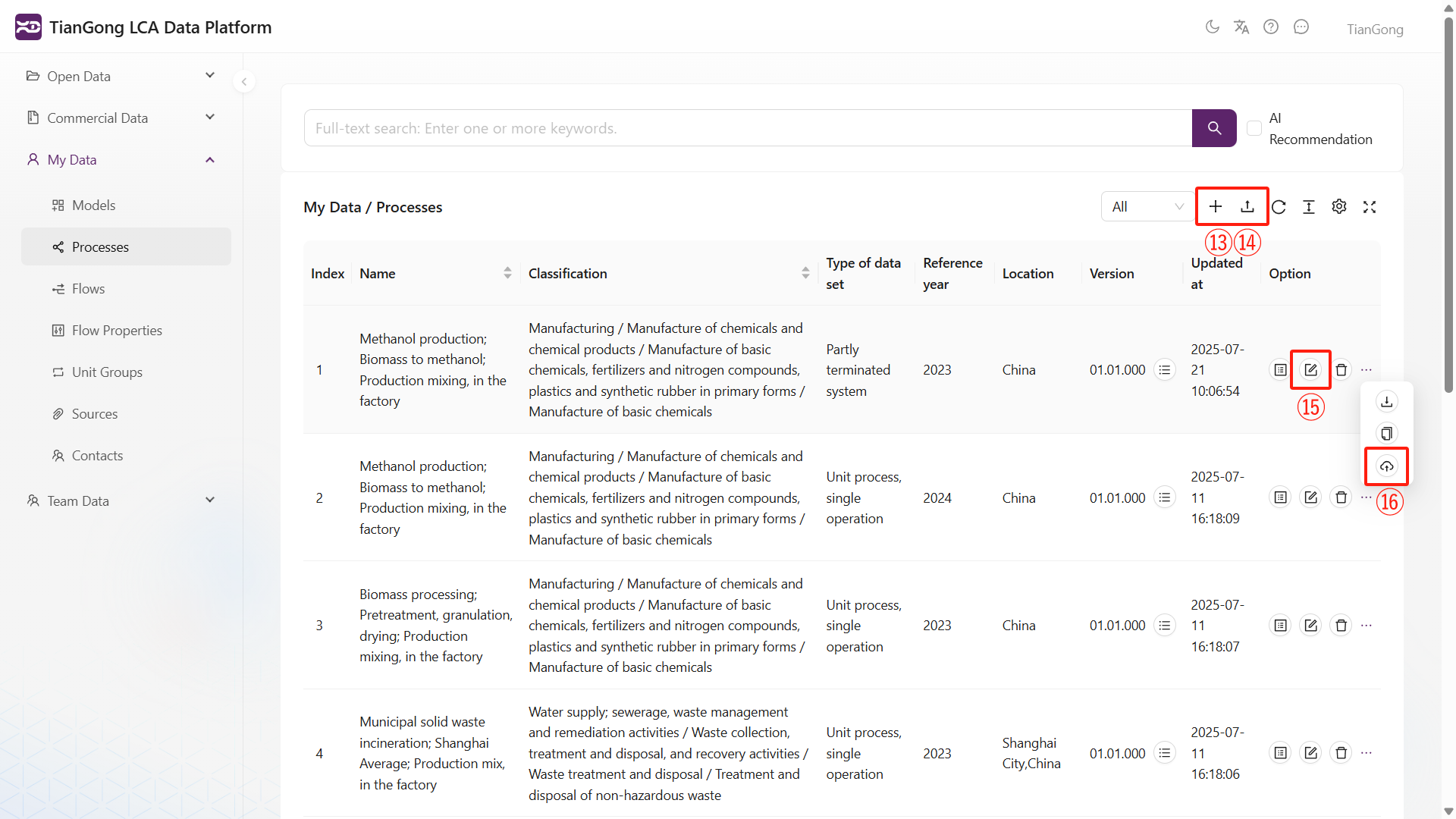
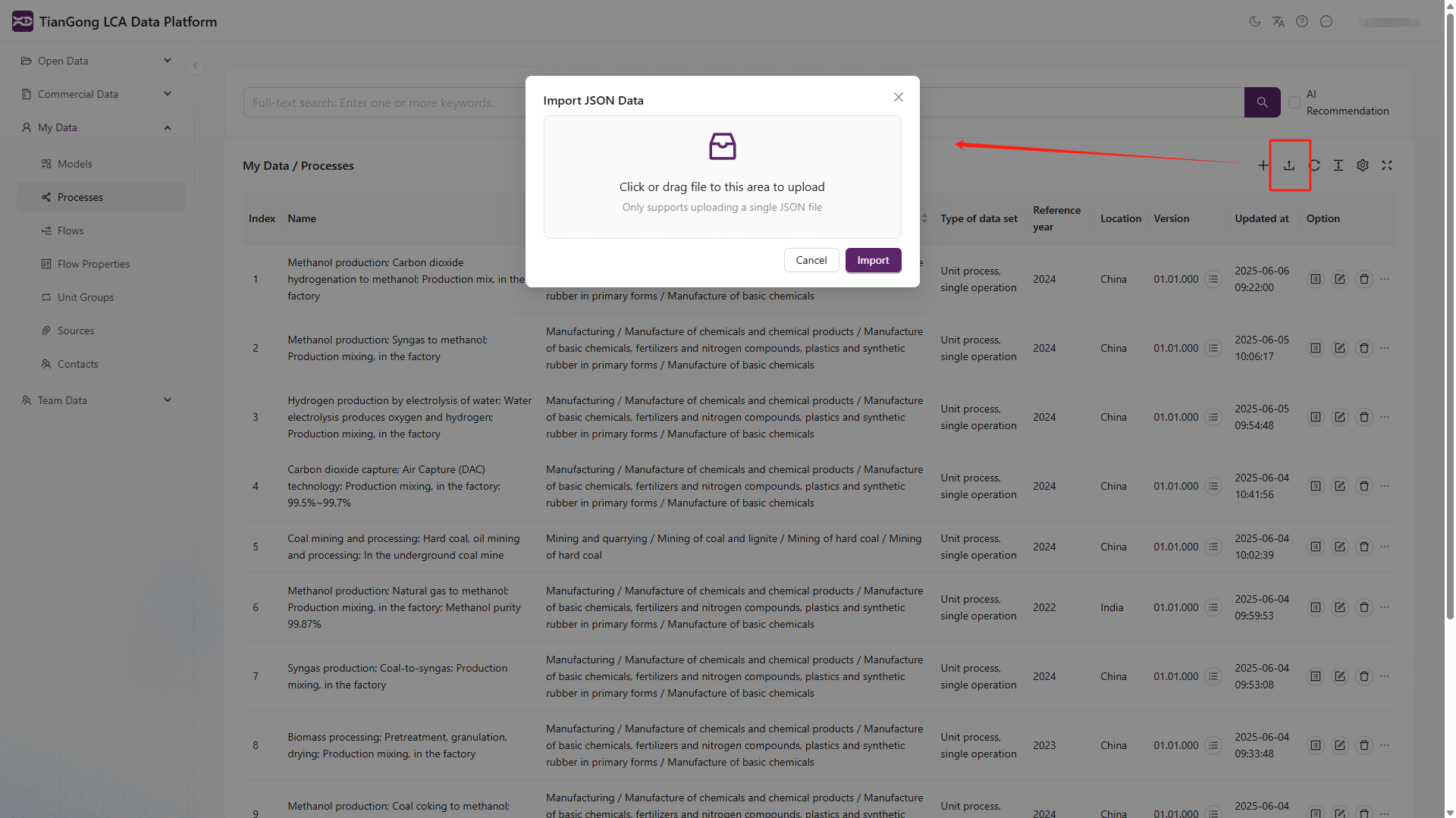
The My Data workspace usually adds:
- Add new item
- Import
- Edit
- Contribute to team
See Create My Data for the full authoring workflow.
Collaboration actions
Team management actions
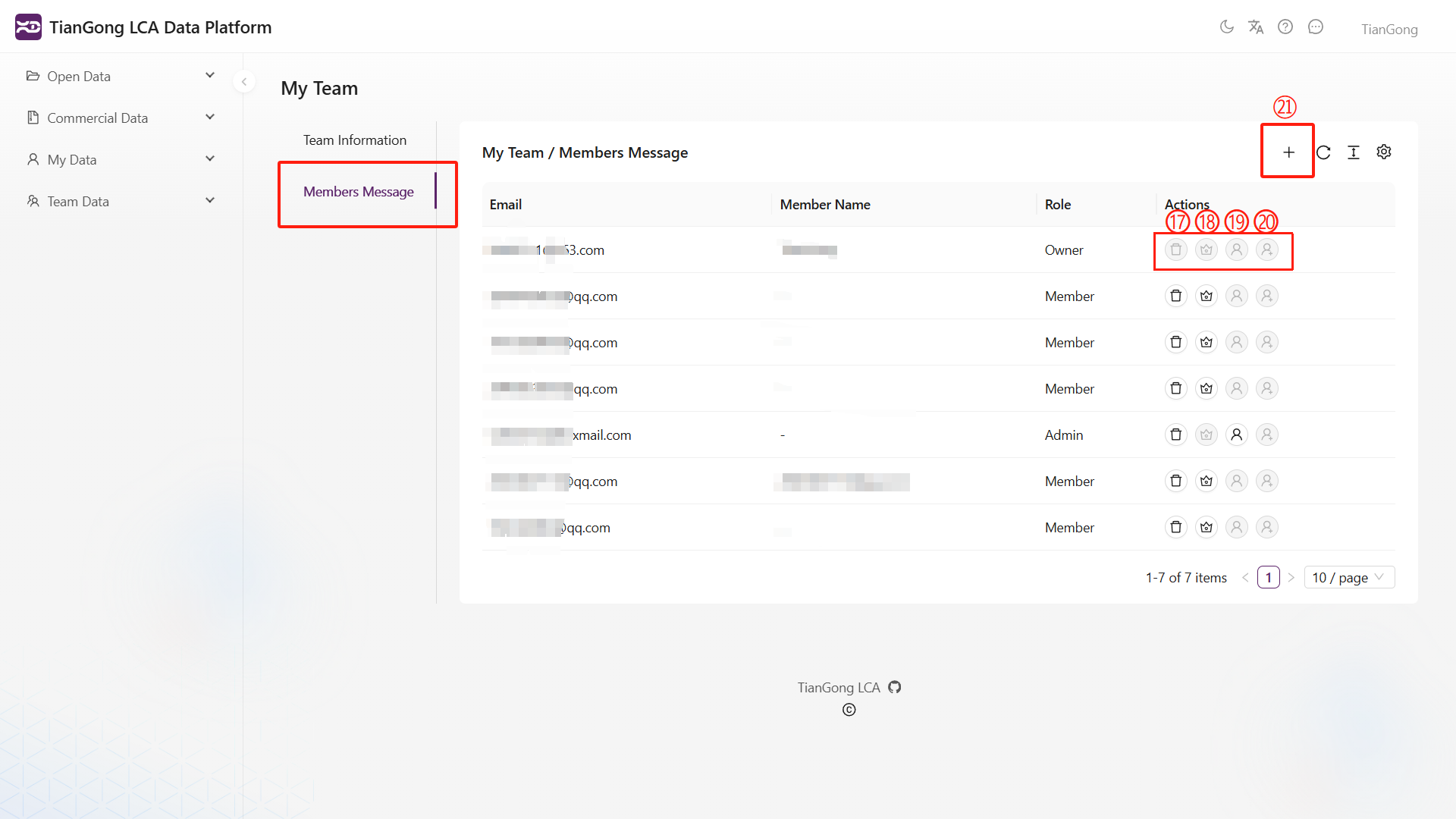
Inside My Team, authorised users can:
- Invite member / Resend invite
- Set as admin / Set as member
- Remove member
For role boundaries and related data access rules, see Team Functions and Permissions & Data Spaces.