
User Guide
Data Usage Guide
Reading public data without signing in
Browse process and flow records in the TianGong LCA public data catalog without an account, or find records by geography and source. Open an exact version to check its description, scope, sources and licence. Process exchanges and LCIA results are shown only where that version makes them public.
The TianGong Life Cycle Data Network (LCDN) is a publication and distribution point for databases in ILCD format. Check the node for available datasets, versions and access conditions, and follow the applicable licence when obtaining or using data.
The operations below take place on the TianGong LCA platform and require signing in.
Viewing Data
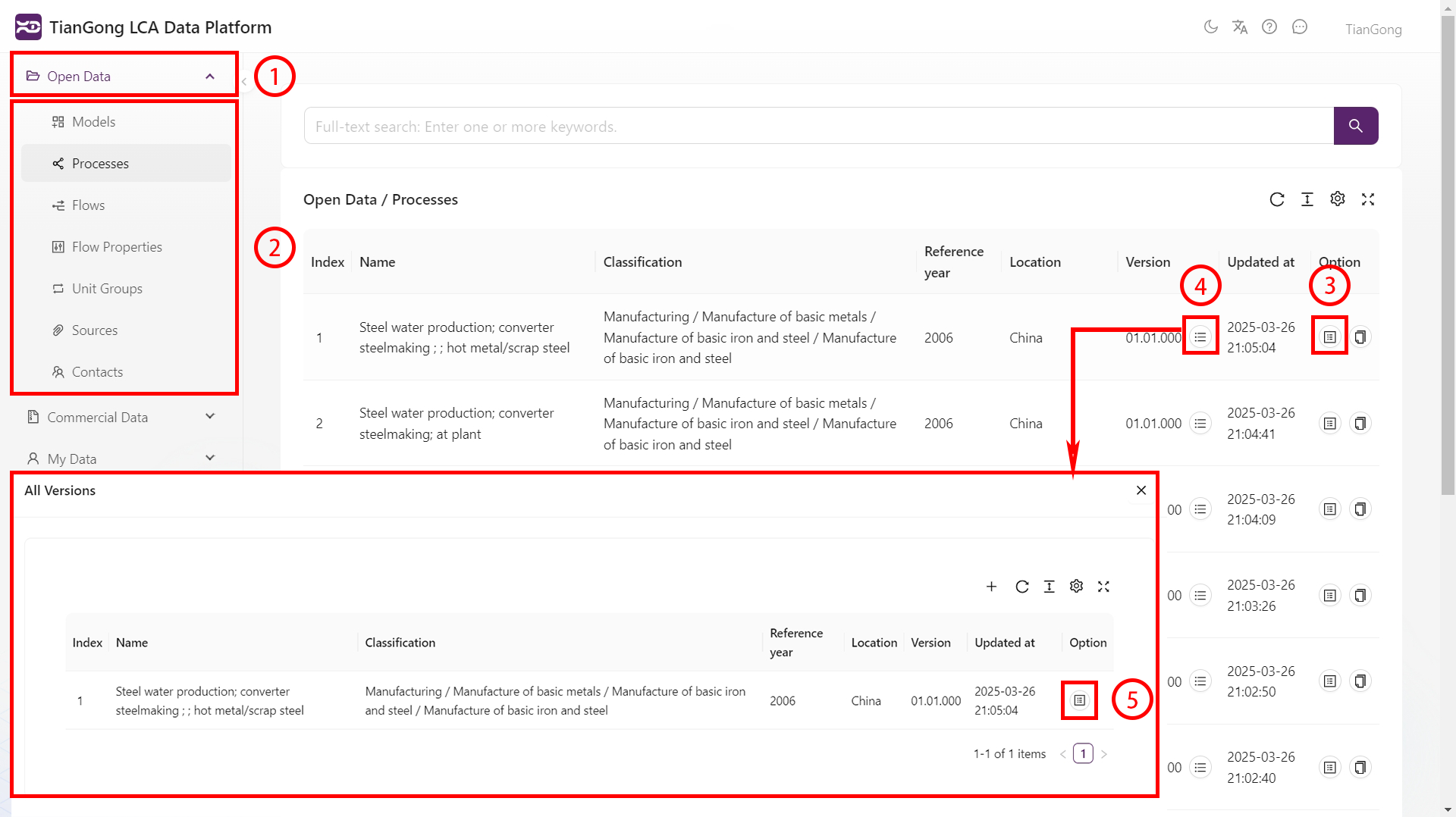
- Open Data Panel: Locate the left navigation bar and click "Open Data" or "Commercial Data" to activate the data management interface.
- Navigate Process Directory: Select target entries in the hierarchical list to jump to the corresponding data space.
- View Data Details: Data lists and search results show the latest visible version for each dataset ID by default. Click the "View" button on the right side of the data list to see comprehensive information including:
- Geographic coordinates
- Timestamp ranges
- System boundaries
- Input/output inventories
- Industry and product classifications
- Reference: CIFA Guidelines Chapter 6 Appendix
- View Version History: Click "All Versions" in the dataset list to access every historical version for that dataset.
- View Historical Data: Click "View" next to specific versions to see detailed historical data. When a page supports version selection, choose the target historical version and submit it.
- Inspect foundational configuration in My Data: Unit groups and flow properties support search, filters, Reference Lookup, All Versions, and export so you can confirm existing records. Ordinary users will not see maintenance actions such as Create Version there.
- Continue the same dataset ID: To create a new version from a historical version, select the source version in All Versions and click Create Version. The form shows “The new version will be generated automatically,” and the system assigns the next version when you save. If you need an independently editable copy instead, use Copy Data. Contact a system administrator for unit group and flow property new-version, copy, or other maintenance work.
Citing Data
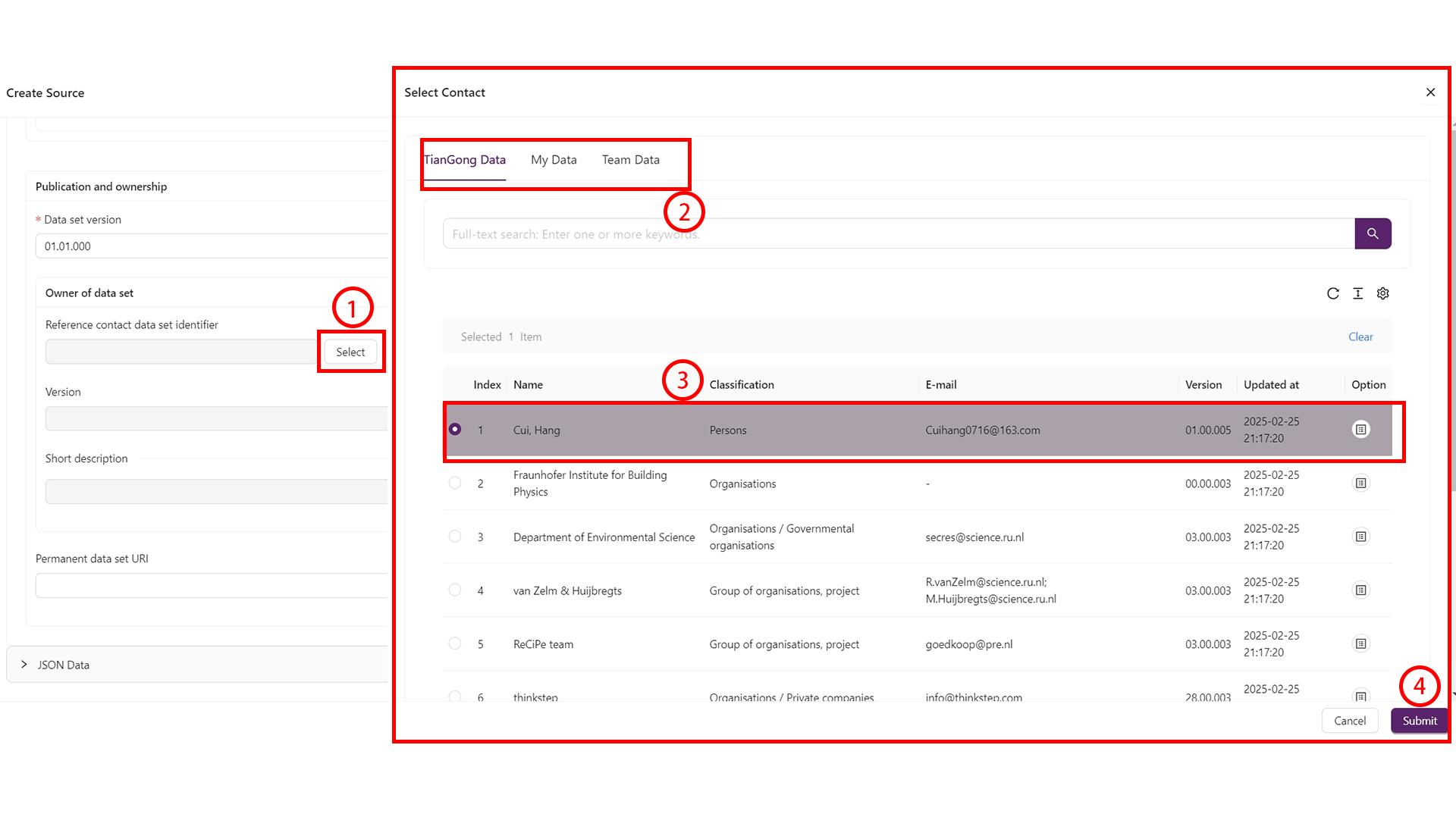
- Open Selection Panel: Click the "Select" button next to the content you wish to cite to open the information panel.
- Switch Categories: Use the top navigation bar to select different data categories.
- Select Data: Check the boxes for target information (selected rows will highlight in purple). To cite a historical version, open "All Versions" first and select the target version. Unit groups and flow properties in My Data also support Reference Lookup for finding relationships, subject to the same data-space, team, and permission limits.
- Save Changes: Click "Save" at the bottom of the edit page to return to the previous panel.
Important: Commercial data cannot be cited
Copying Data
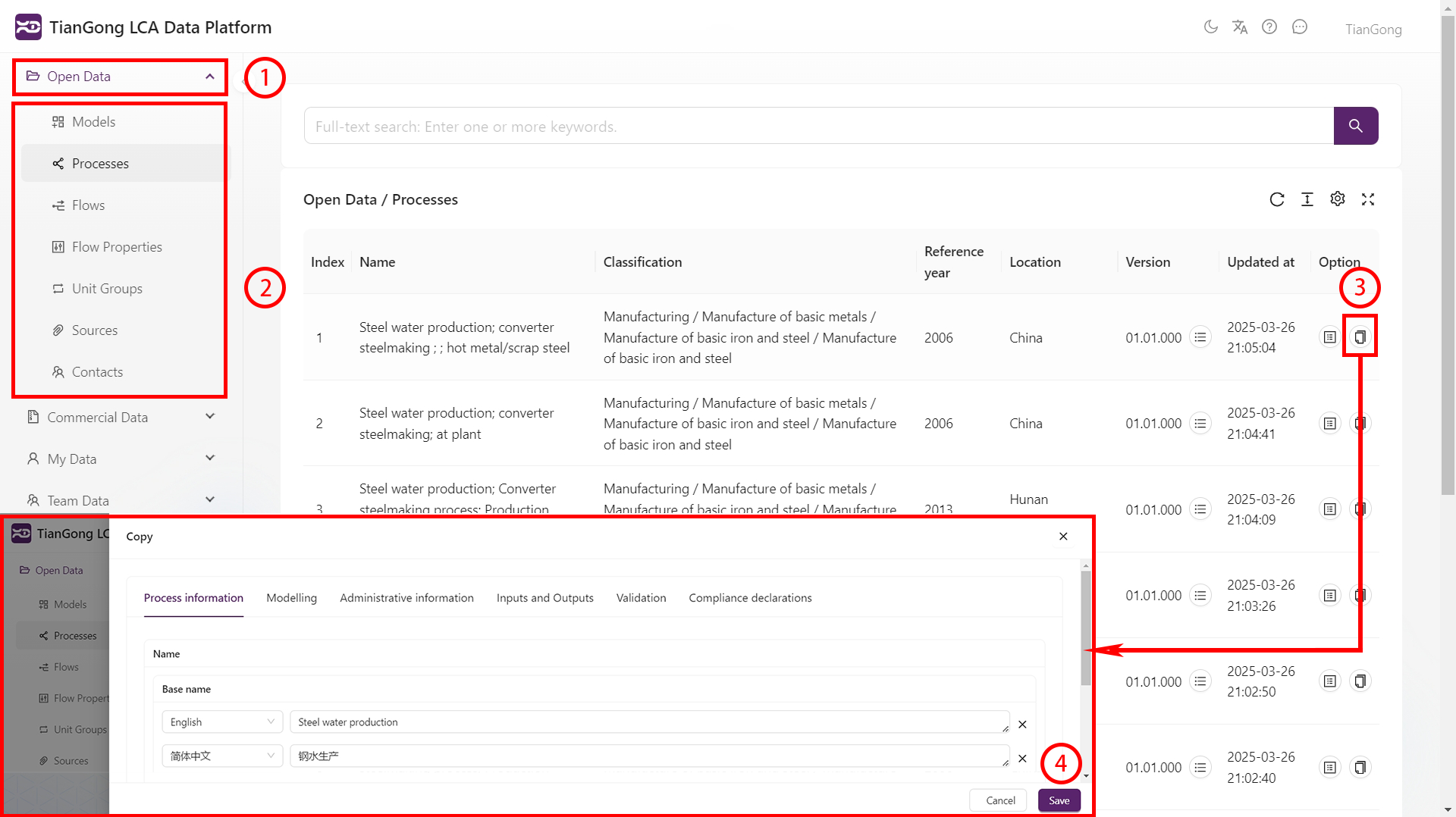
- Open Data Panel: Locate the left navigation bar and click "Open Data" or "Commercial Data".
- Navigate Process Directory: Select target entries in the hierarchical list.
- Open Copy Interface: Click "Copy Data" to open the data copying page.
- Save Changes: Click "Save" to confirm the copy operation.
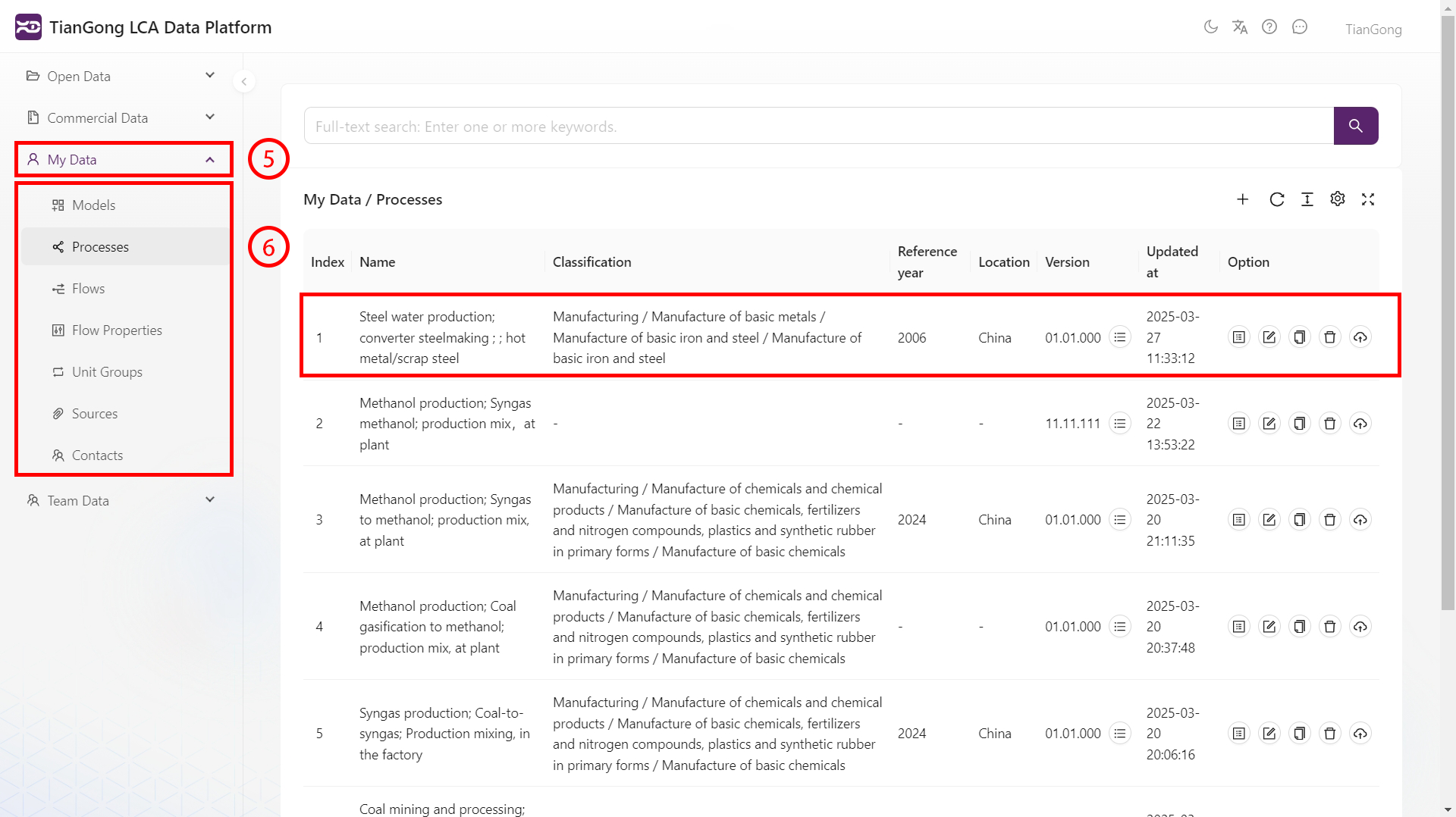
- Access Copied Data: Navigate to "My Data" in the left sidebar, select the target entry to view your copied data (which can be modified—see My Data Guide).